
Five places to look, best first
No single list shows every company that holds your data. Five sources together come close. Here they are, ranked by how much each one usually finds:
| Where to look | What it finds | What it misses |
|---|---|---|
| Your inbox | Almost every shop, app and service you signed up with, back to the day you opened the address | Accounts made with another email address |
| Sign in with Google or Apple | Apps where you never typed a password | Anything you signed up for with an email and password |
| Your password manager | Sites where you saved a login | Sites where you never saved one |
| Bank and card statements | Subscriptions and shops you paid | Free accounts |
| Access requests | What one company holds, and who it passed your data to | Nothing on its own: use it to confirm and to follow the trail |
Keep a simple list as you go: the company’s name, the email address you used with it, and where you found it. You will send your requests from it.
Search your inbox
Every company you sign up with emails you: a welcome message, a code to confirm your address, a receipt, a newsletter. Those emails stay in your inbox for years, long after you have forgotten the account. Searching for them is the quickest way to build your list.
You only need the sender’s name, the subject and the date of each email. You do not have to open them.
What you are looking for
Read down the sender column. Each new sender name is a company that has your email address at least, and usually more.
A welcome or confirm-your-email message is the best sign, because it means you made an account there.
In Gmail
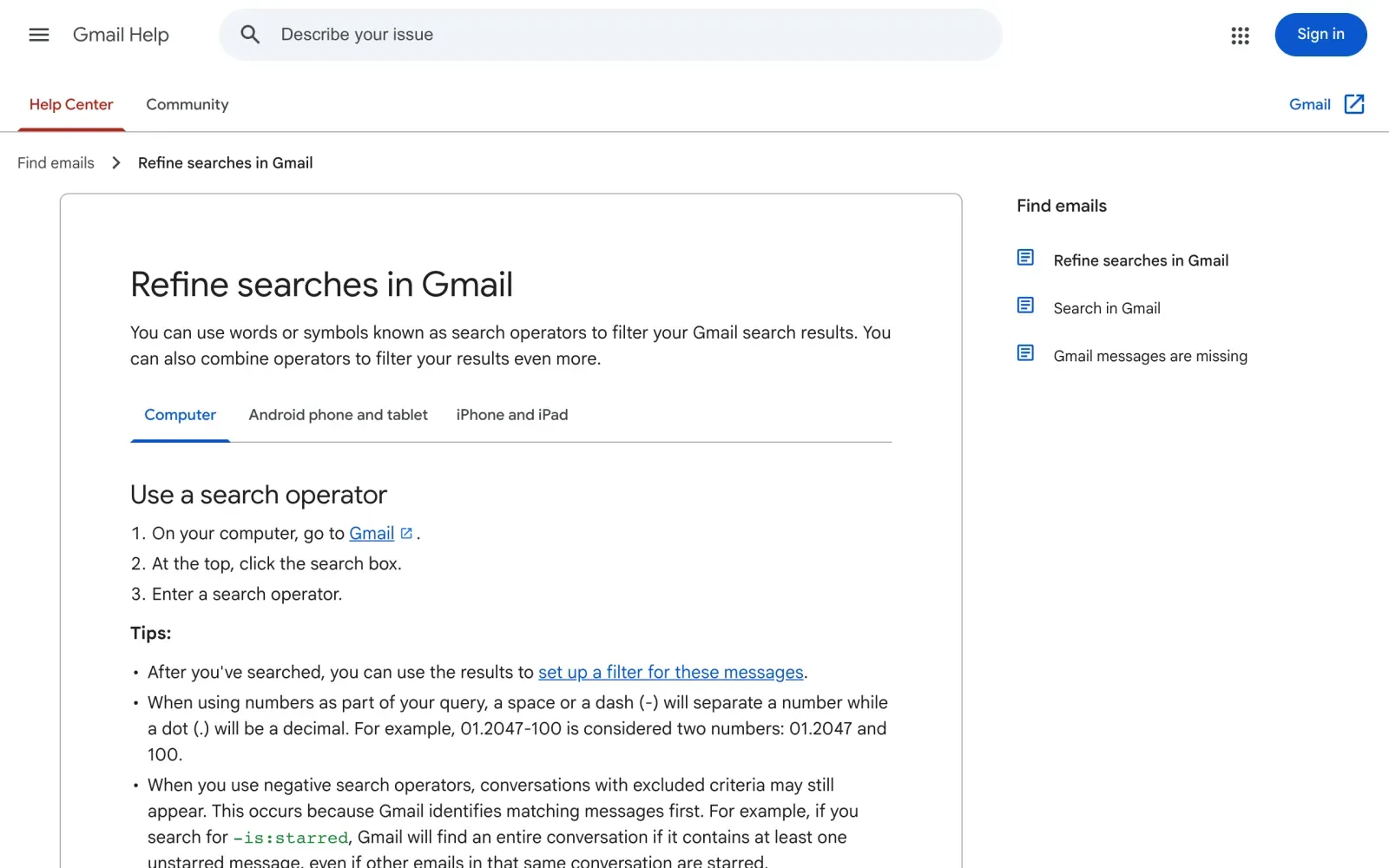
Gmail has search operators, words you type into the search box to narrow the results. Google lists them on its help page Refine searches in Gmail. These searches use only operators from that page. Type each one into the search box at the top of Gmail.
| To find | Type this into Gmail |
|---|---|
| Accounts you opened | subject:(welcome OR "confirm your email" OR "verify your email") |
| Things you bought | subject:(receipt OR invoice OR "order confirmation") |
| Newsletters and marketing | category:promotions |
| Mailing lists | unsubscribe |
| Old accounts only | subject:welcome older_than:3y |
| A single year | subject:welcome after:2019/01/01 before:2020/01/01 |
Type OR in capitals, as Google’s examples do. The category:promotions search works only if your Gmail sorts mail into tabs. Searching for the word unsubscribe finds most marketing email, because companies put an unsubscribe link at the bottom.
In Outlook
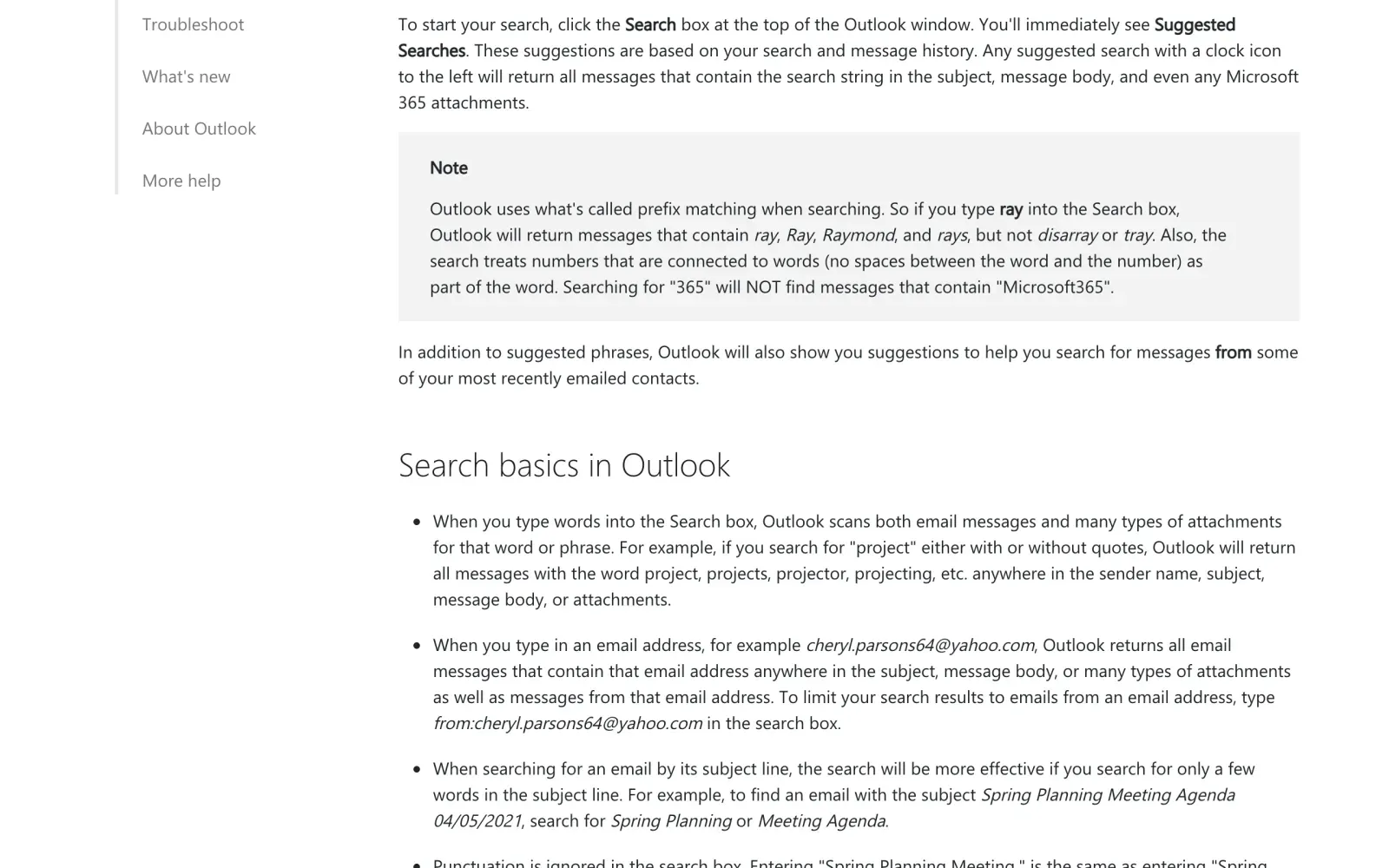
Outlook.com and the Outlook apps also take search words. Microsoft documents them on its page How to search in Outlook. Type into the Search box at the top.
| To find | Type this into Outlook |
|---|---|
| Accounts you opened | subject:welcome OR subject:"verify your email" |
| Things you bought | subject:receipt OR subject:invoice |
| Mailing lists | unsubscribe |
| Everything from one company | from:shop.example |
As in Gmail, AND, OR and NOT must be in capitals. Outlook matches the start of words, so welcome also finds welcomes.
Apps you signed in to with Google or Apple
If you used a Sign in with Google or Sign in with Apple button, you may never have typed a password, and the welcome email may be easy to miss. Both companies keep a list of these apps for you.
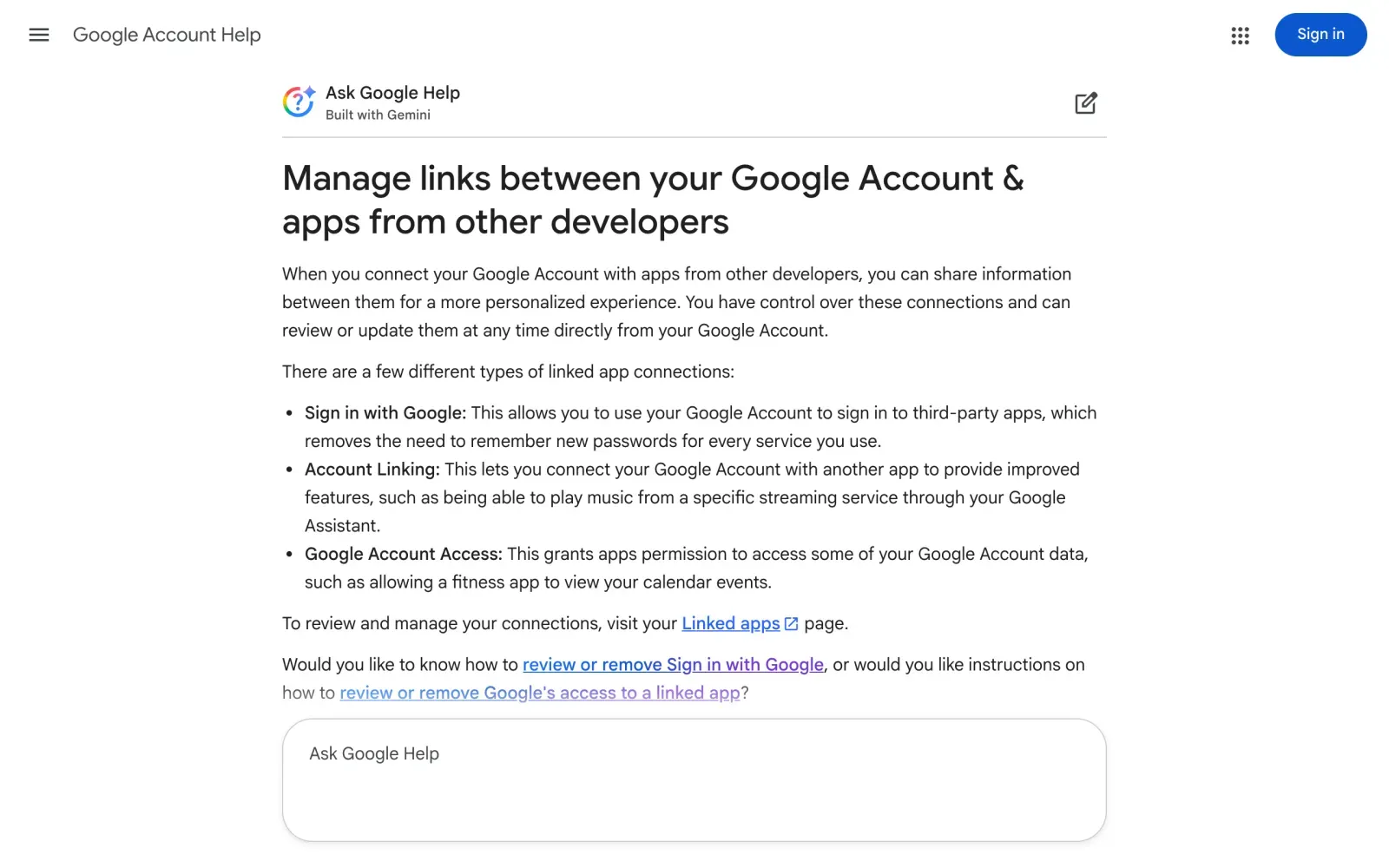
Google’s help page Manage links between your Google Account & apps from other developers sends you to the Linked apps page of your Google Account. It lists apps you sign in to with Google and apps you gave access to your Google data.
Apple
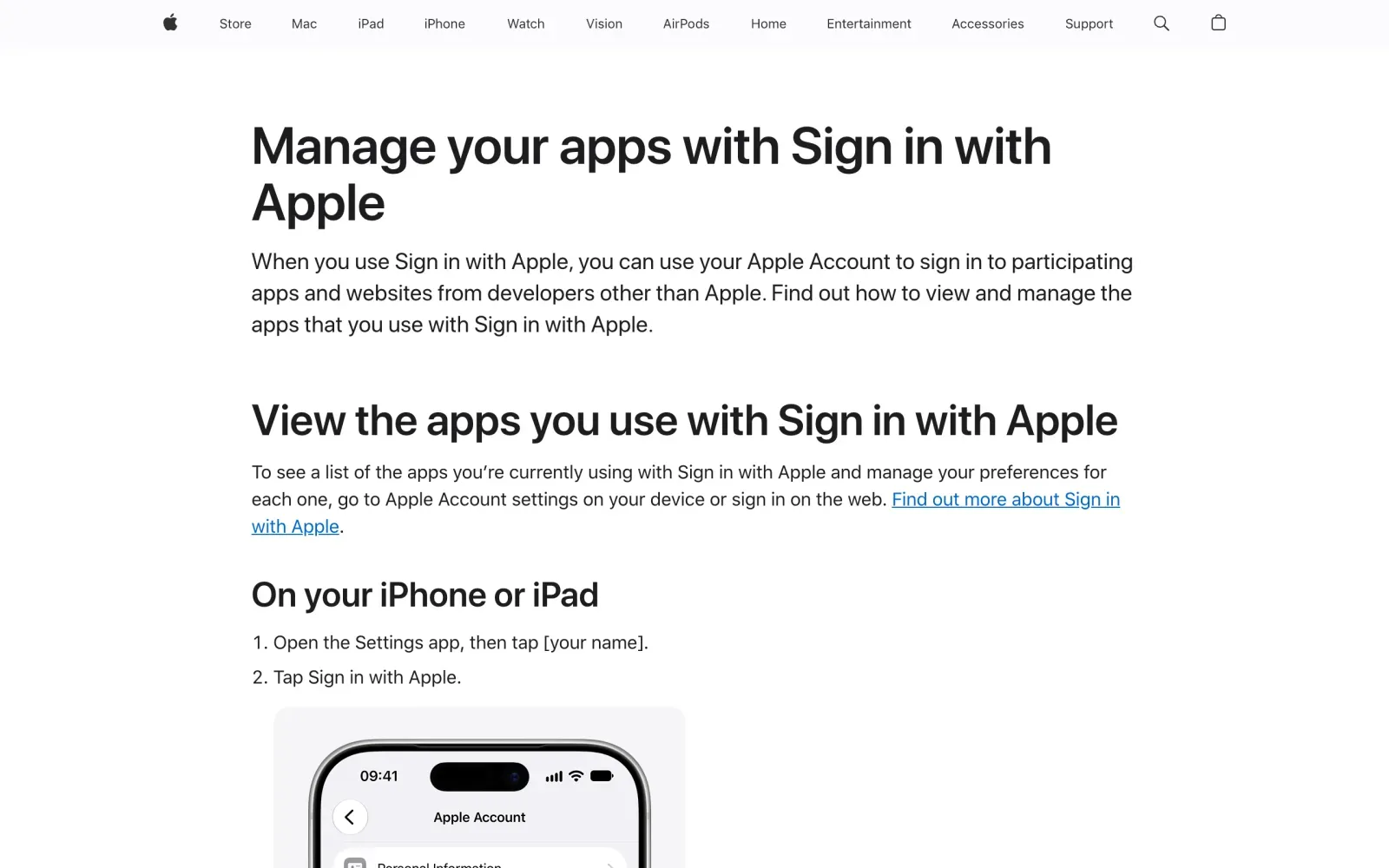
Apple’s help page Manage your apps with Sign in with Apple gives the steps:
- iPhone or iPad: open Settings, tap your name, then tap Sign in with Apple.
- Mac: choose the Apple menu, then System Settings, click your name, then Sign in with Apple.
- On the web: sign in at account.apple.com, go to Sign-In and Security, and select Sign in with Apple.
If you chose Hide My Email when you signed up, the company has a relay address rather than your real one, and its emails reach you through Apple. They still show up in your inbox searches.
Your password manager
Every saved login is an account. Your password manager is a list of the sites where you made one, with the username or email you used.
- Google Password Manager: Google’s help page Save, manage & protect your passwords points to passwords.google.com, which lists every site with a saved password.
- Apple Passwords: Apple’s help page Find saved passwords and passkeys on your iPhone says to open the Passwords app and choose a category. On iOS 17 and earlier, saved passwords are in Settings, Passwords.
- Other password managers show the same kind of list, usually called All items or Logins.
Copy the site names, not the passwords. You only need the name and the email address for your list.
Bank and card statements
Subscriptions, apps that charge you every month, and shops that keep your card on file all appear on your statements. Look back over a full year, so you catch yearly renewals. A company that has charged you holds at least your name and payment details. It may have to keep invoices for tax (Article 17(3) lets it keep what the law requires), so ask what it keeps as well as asking it to delete the rest.
Confirm with an access request
The four methods above show who probably has your data, and an access request confirms it. Under Article 15 of the GDPR (and the UK GDPR), a company must confirm whether it holds personal data about you and, if it does, give you a copy along with:
- who it has shared the data with, or the kinds of recipients (Article 15(1)(c));
- where it got the data, if not from you (Article 15(1)(g)).
Those two answers can show you companies that were never in your inbox: a partner a shop passed your details to, or a firm that bought them. Add them to your list.
The subject access request guide has a free letter for this. Companies have one month to answer, as the guide How long does a company have to answer a GDPR request? explains.
Rather not search by hand?
Reflex runs this scan for you, from the sender, subject and date of your emails. Free to join the beta, €19 once when you start.
What to do with your list
For each company, decide what you want:
- Gone for good: send the deletion letter. In the UK, see the right to be forgotten guide.
- Not sure what it holds: send an access request first.
- A big shop or app: some have their own guide, for example Zalando, Vinted, Temu and Shein.
Send each request from the email address you used with that company, so it can find your account without asking for ID.
Questions
Is there one place that lists every company with my data?
No. No register lists every company that holds data about you. Your inbox comes closest, because nearly every company you signed up with has emailed you at least once.
Does removing an app from my Google or Apple account delete my data there?
No. Google says deleting a link "doesn't delete your data on the app", and Apple says stopping Sign in with Apple signs you out of the app. To have the data erased, send the company a deletion request.
What about companies I never signed up with?
Some companies get your data from others, for example from a shop you bought from. An access request makes the company say where it got your data and who it gave it to (Article 15(1)(c) and (g)), which can lead you to the next company.
How far back should I search?
As far as your inbox goes. Old accounts you forgot about are often the ones worth closing, so search without a date first, then narrow down with before or after if you get too many results.
Sources
- Refine searches in GmailGoogle, checked 15 November 2026
- How to search in OutlookMicrosoft, checked 15 November 2026
- Manage links between your Google Account & apps from other developersGoogle, checked 15 November 2026
- Manage your apps with Sign in with AppleApple, checked 15 November 2026
- Save, manage & protect your passwordsGoogle, checked 15 November 2026
- Find saved passwords and passkeys on your iPhoneApple, checked 15 November 2026
- Regulation (EU) 2016/679, the GDPR, Articles 15 and 17EUR-Lex, checked 15 November 2026